
SWN WiFi
Connect to SWN Wi-Fi using your MIMS account for internet access on your mobile device. Follow the steps to set up and log in.
Students may connect to the SWN Wi-Fi network to access the Internet for teaching and learning purposes.
Follow the steps below:
Go to Wi-Fi under Settings on your device.
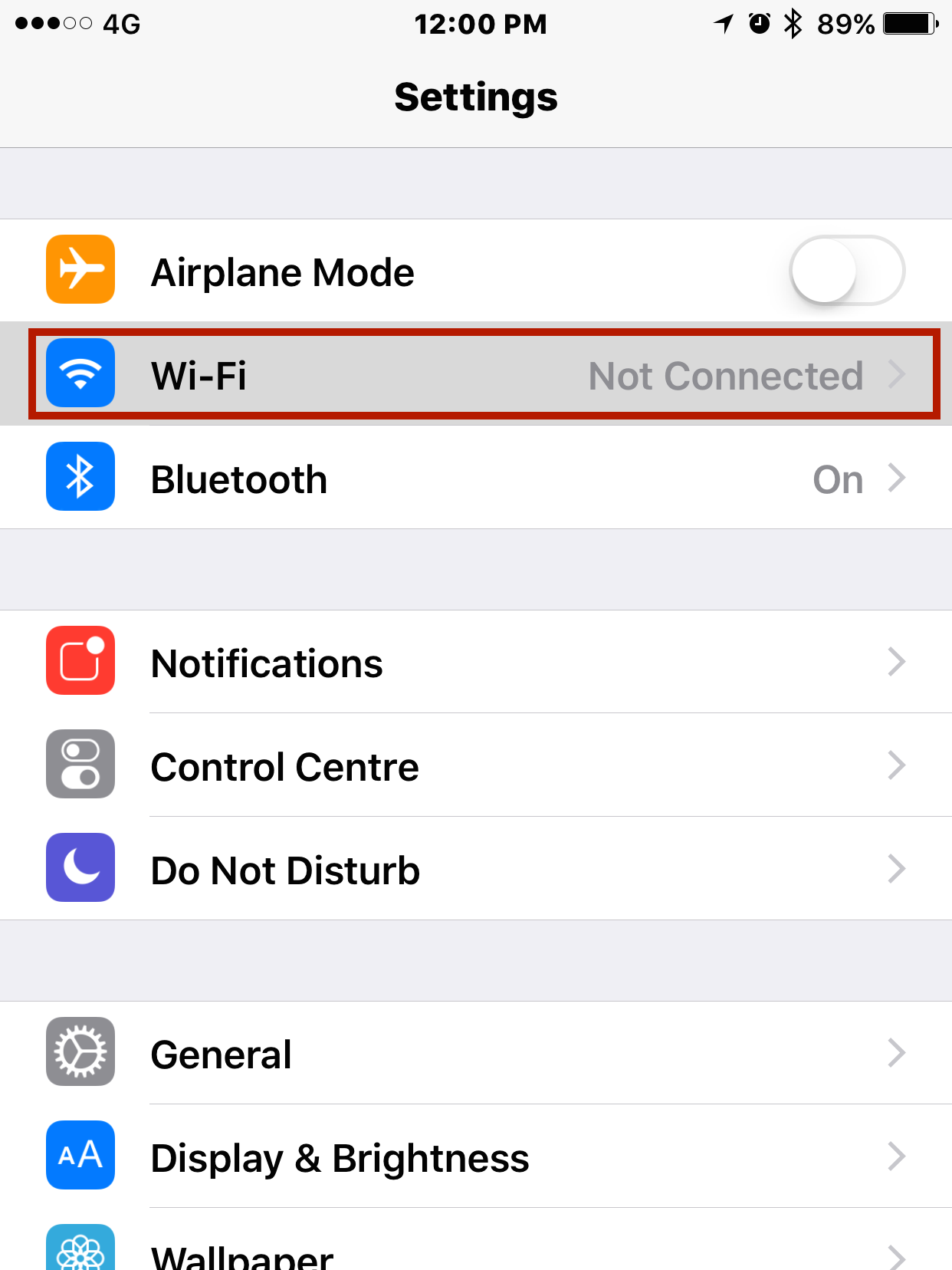
Select SWN@SSOE from the available Wi-Fi network list.
Once connected, a login page will pop up. Log-in using your MIMS account.
(Remember to check the box to accept the terms and conditions.)
If you have the MOE-SSL certificates installed, you may click on Done. Otherwise, please proceed to Step 5.
If you are connecting to SWN on your device for the first time, please download and install the MOE-SSL certificate. (You only need to do so once.)
Press the Install button when you see the Install Profile page.
You will need to enter your passcode for the installation to start. If your phone is not protected with a passcode, you will be prompted to create one.
Press the Install button after you have entered your passcode.
Press Done to complete.
Note: You cannot log-in on more than one device using the same account at the same time. Please remember to log out from SWN at http://portal.swn.moe.edu.sg when you have finished using the connection.
To reset your MIMS password, you can go to the IT Center for help or email Mr Lee Yew Ming at lee_yew_ming_a@moed.edu.sg (opens in new tab)or Mdm Sangeetha at ramachandran_sangeetha@moe.edu.sg (opens in new tab)Your MIMS password will expire every 365 days.